
Ray3 Modify: User Guide
Ray3 Modify is our newest set of Video-to-Video and Character Reference features in Dream Machine that let you transform any input video with a higher level of control, and give you different ways to change or preserve a character across the shot.
Ray3 Modify brings new Character Reference capabilities to workflows and features across Modify, Keyframes and Reference modes for deeper control over scene and shot progression with character continuity.
Now Available to All Subscribers
Input Video + Character Reference
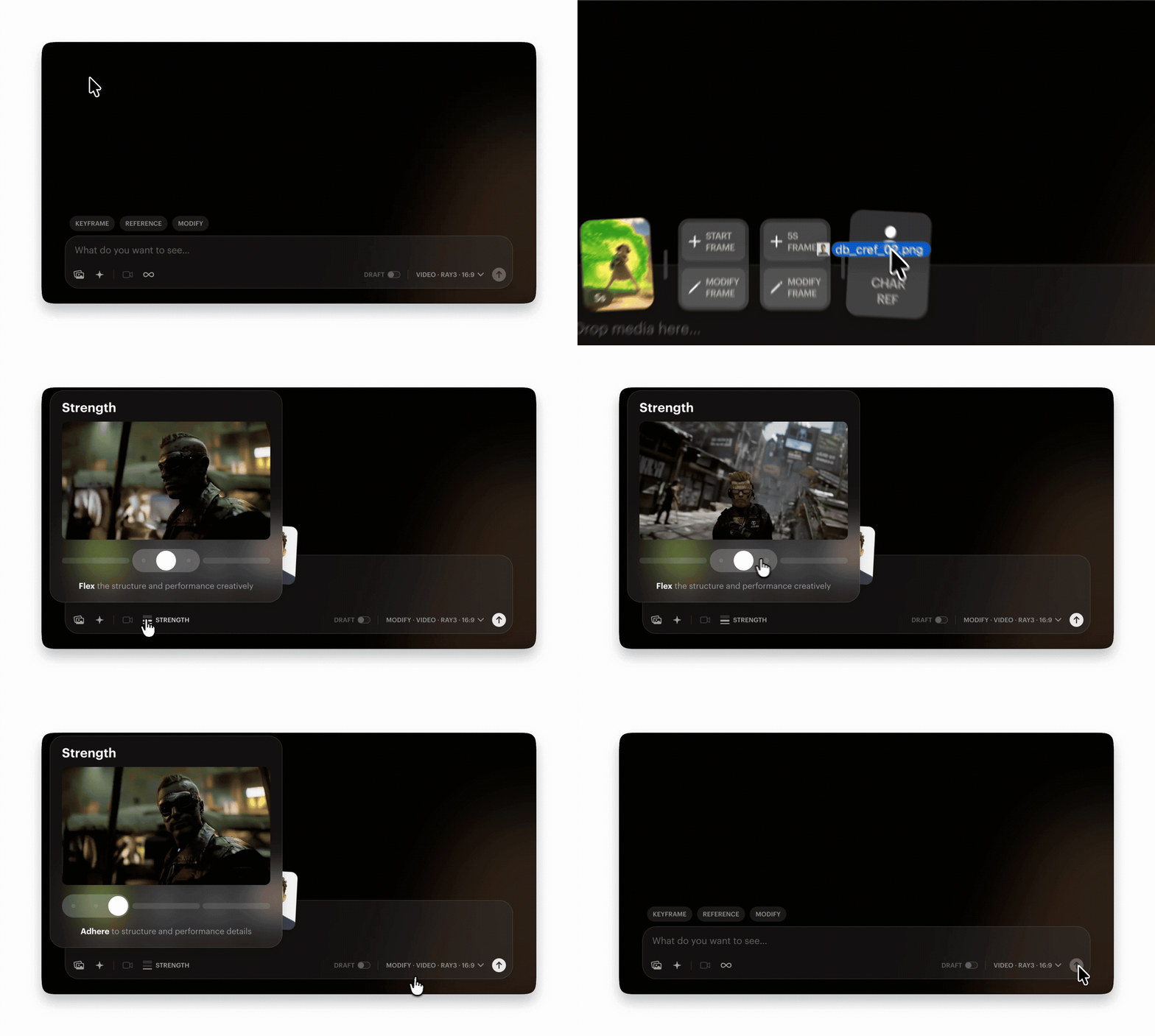
Replace the character in your input video with your character reference, everything else in the video will remain unchanged. Your character reference will automatically adapt to the visual or artistic style and lighting of your input video.
How-to Steps:
1️⃣ In Modify mode upload your input video (max 10s) and your character reference
2️⃣ Adjust your Modify strength and submit to create
Input Video + Keyframes + Character Reference
This is the highest level of control with Ray3 Modify. It enables you to upload an input video, modify the start and/or end frames, and upload a character reference image to control the character.
How-to Steps:
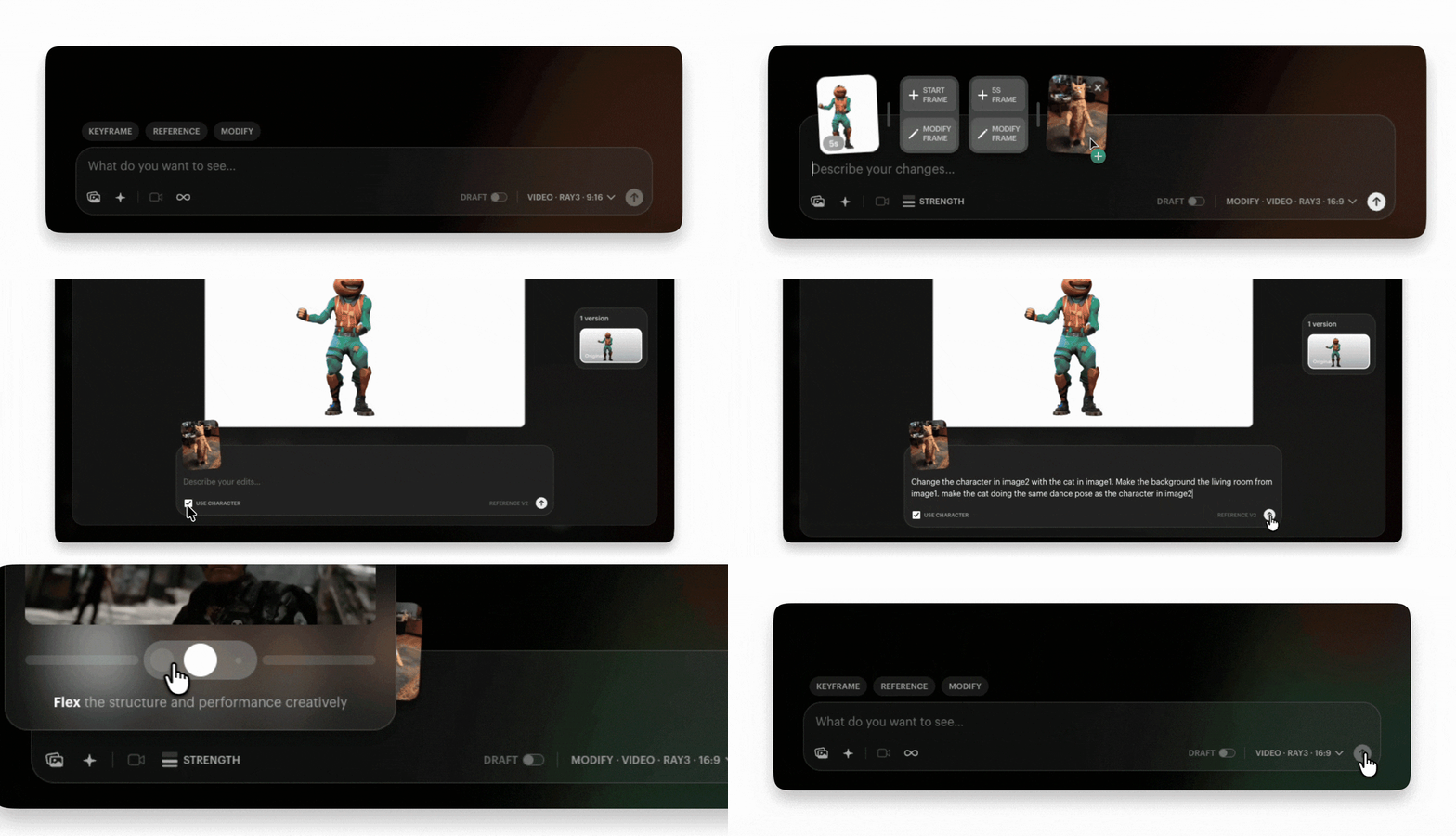
1️⃣ In Modify mode upload your input video (max 10s) and your character reference image
2️⃣ Click on either keyframe card to open the Modify frame editor and check the ‘use character’ box
3️⃣ Write your instructions and submit to modify that keyframe, do the same with your next keyframe
4️⃣ Adjust your Modify strength and submit to create
💡 Note: About the End Frame
the end frame is really the 5s frame, if your input video is longer than 5s, it will pull the image/keyframe that is at the 0:05 mark in your video. Your transformation will still be applied to the entire video
🔑 Tip: About Reference Image
When modifying your keyframes, the character reference image can be referred to as ‘image1’ or 'cref', and the target keyframe image can be referred to as ‘image2’ or 'original image'. A keyframe modification prompt could look like this: “replace the character in image2 with the cat in image1, make the background the living room from image1, make the cat doing the same exact pose as the character in image2”
Keyframes + Character Reference
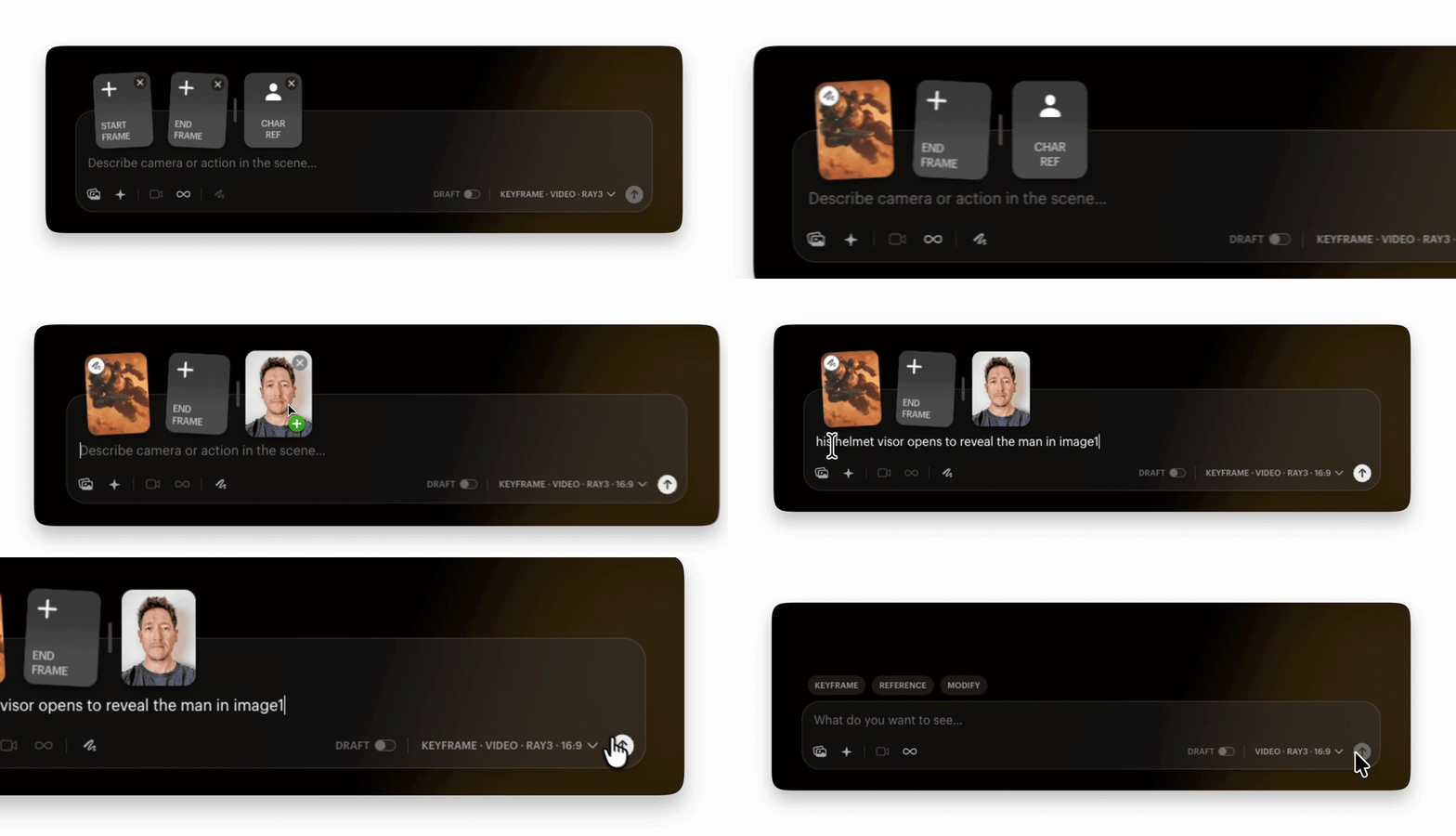
You can now add a character reference alongside your start and/or end frames, then with your written instructions reveal your character–even if it wasn’t present or visible in either keyframe.
How-to Steps:
1️⃣ In Keyframes mode, upload your keyframe(s) and character reference
2️⃣ Enter your written instructions and submit to create
Reference Video Mode + Character Reference
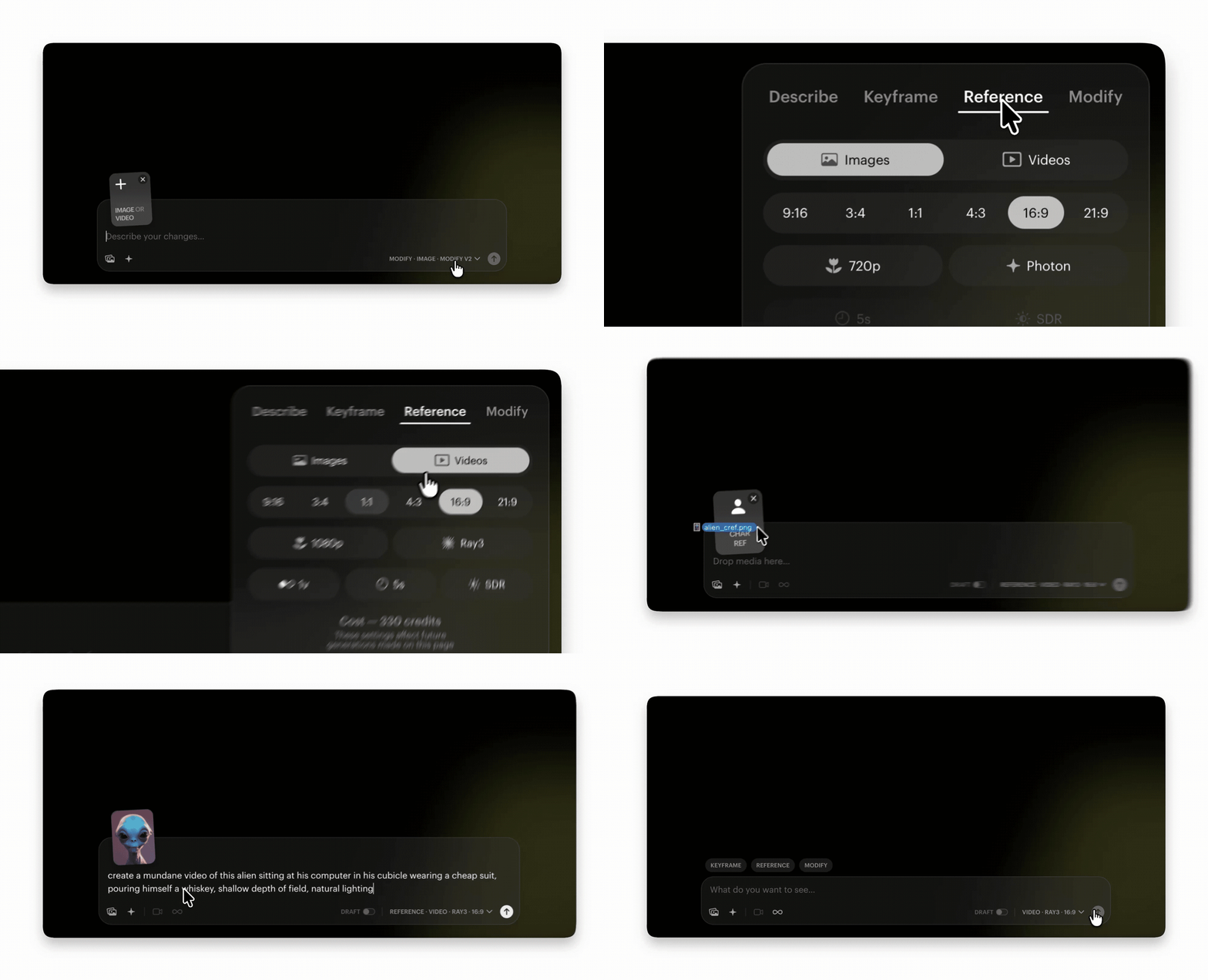
In this update we also activated video in Reference mode and added a character reference card. This lets you create with text-to-video while keeping a consistent character identity anchored to your reference image.
How-to Steps:
1️⃣ In Reference mode settings, select the Video tab
2️⃣ Upload your character reference image
3️⃣ Write your instructions and submit to create
🔑 Tip: For even better outputs, try 1080p resolution with this process
💡 Note: About The Modify Strength Control Slider
The Modify Strength slider determines how closely the system follows your input video. Moving the slider to the left side on ‘Adhere’ keeps the model tightly aligned to the original shape edges and details–ideal for subtle changes like retexturing, relighting or recoloring. Setting the slider to the right on ‘Reimagine’ loosens that alignment, allowing for more stylized, abstract, or non-human character transformations.
At the highest Reimagine levels, the system blurs those edges and shapes to become more flexible and generous with character shape and expression. The background elements also become less rigidly defined giving you more imaginative control over the environment–this helps when working with less-human character references and backgrounds that are a lot different than that of your input video.
Camera Information
Higher Modify Strength settings can reduce how much camera motion is preserved from your input video. In the highest Reimagine settings, the system may infer camera movement based on the subject’s pose, which can create zooms or shifts that reinterpret the original shot. Reimagine levels focused on pose will lean into this behavior to match the implied movement of the transformed character.
Puppeteering Non-Human Characters
Reimagine’s strongest settings create a loose, blurry interpretation of the scene, which is useful for controlling characters with shapes far from the human form. In this mode the system imagines more freely and is less bound to the performer’s body contours. This allows you to “puppeteer” non-human creatures or unusual shapes.