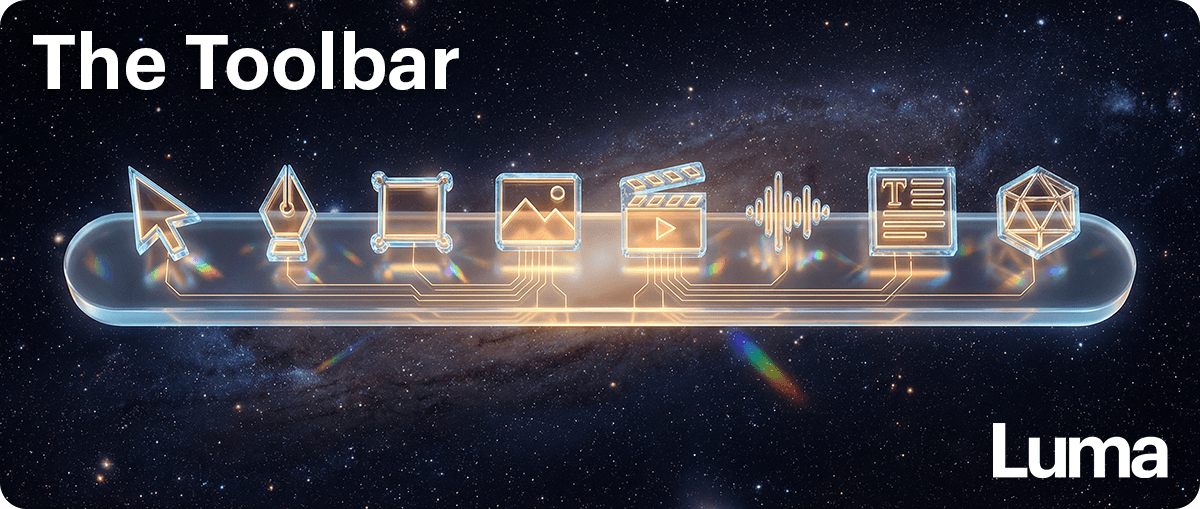

Toolbar: Complete Feature Guide
The toolbar provides quick access to the core capabilities used to create, organize, and refine assets within your project. Each control allows you to generate media, structure work, and manage assets without interrupting your creative flow.
Below is a guide to each primary tool and how to use it effectively.
Pointer / Selection Tool (Cursor Arrow)
What It Does
The Pointer tool allows you to select, move, resize, and organize assets on a board. It is the default control used to interact with images, videos, documents, and other generated media.
How to Use It
Click to select a single asset
Click and drag to move selected items
Drag corners or edges to resize
Hold Shift while clicking to select multiple assets
Press V or Esc to activate this tool from anywhere
Ideal Use Cases
Organizing layouts and repositioning elements
Selecting multiple assets to align or group
Resizing images, videos, or frames
Navigating complex boards
Best Practices
Use Shift + click for precise multi-selection
Double-click text or documents to edit them directly
Hold Option / Alt while dragging to duplicate assets quickly
Quick Example
You generated several product images and want to arrange them into a grid. Activate the Pointer tool (V), select each image while holding Shift, then align them to create a clean layout.
Generate Image (Photo Icon)
What It Does
Opens the image generation panel where you can create images using models such as Nano Banana, Nano Banana Pro, GPT Image 1.5, and Seedream.
Generated images appear directly on your board and can be arranged or used in further prompts.
How to Use It
Click the Photo icon to open the Create Image panel
Choose your preferred model
Enter a text prompt describing the image
Adjust available settings such as aspect ratio or style
Click Generate and the image appears on your board
Ideal Use Cases
Creating visuals for presentations, campaigns, or storyboards
Generating product mockups, character designs, or concept art
Producing background elements or textures
Rapid visual exploration and iteration
Best Practices
Be specific in prompts. Include lighting, composition, and style.
Use Nano Banana Pro when higher detail is required
Generate multiple variations to explore creative directions
Reference existing assets to maintain consistency
Quick Example
You need a hero image for a startup website. Open Create Image, select GPT Image 1.5, and type:Modern minimalist office desk with laptop, plants, natural lighting, wide angle.
Generate the image and position it on your board.
Generate Video (Play Button)
What It Does
Opens the video generation panel with access to models such as Ray3.14, Ray3.14 HDR, Ray3, Ray3 HDR, Sora 2, Veo 3, Veo 3.1, and Kling 2.6.
Video can be generated from text prompts or image inputs.
How to Use It
Click the Play icon to open the Create Video panel
Select a video model
Enter a text prompt or upload an image as a starting frame
Configure duration, aspect ratio, or additional parameters
Click Generate and the clip renders on your board
Ideal Use Cases
Creating social media video ads or product demos
Animating still images into motion clips
Producing B-roll or motion backgrounds
Building quick concept videos or storyboards
Best Practices
Use Ray3.14 HDR when cinematic quality is required
Start with image-to-video for greater composition control
Write prompts that describe subject and movement
Generate shorter clips first to iterate quickly
Quick Example
You have a product image and want a rotating showcase clip. Upload the image, select Ray3.14, and type:
Smooth 360-degree rotation with studio lighting.
Generate the clip and place it on your board.
Generate Audio (Waveform Icon)
What It Does
Opens the audio generation panel with three categories: Speech, Music, and Sound Effects.
You can create voiceovers, background music, or sound effects directly within your project.
How to Use It
Click the Waveform icon to open the Generate Audio panel
Choose Speech, Music, or Sound Effects
Enter text or describe the audio you need
Generate the file and it will appear on your board
Ideal Use Cases
Adding narration to video projects
Creating custom background music
Generating sound effects for animations or motion graphics
Producing podcast intros or transitions
Best Practices
Preview voices before generating longer narration
Include genre, tempo, and energy level in music prompts
Generate slightly longer sound effects for editing flexibility
Test audio timing against video before final export
Quick Example
You are producing a product video and need narration. Select Speech, paste your script, choose a voice, and generate a voiceover to sync with your visuals.
Frame / Container Tool (Square)
What It Does
Creates frames that group related assets together. Frames help structure complex boards and organize projects into clear sections.
How to Use It
Click the Frame icon in the toolbar
Click and drag to define the frame size
Release to create the frame
Drag assets into the frame to group them
Move the frame to move all contained assets together
Ideal Use Cases
Organizing multi-scene storyboards
Grouping assets for presentations
Structuring campaign variations or concepts
Building organized layouts
Best Practices
Name frames clearly for easier navigation
Use frames to establish visual hierarchy
Resize frames to fit content rather than forcing content to fit
Nest frames for more complex organization
Quick Example
You are creating a campaign with several platform variations. Create frames labeled Instagram, TikTok, and Facebook, then group each platform’s assets inside its frame.
Shapes Tool (Scribble Icon)
What It Does
Opens a shapes menu (shortcut S) containing tools for drawing shapes, arrows, connectors, and freehand illustrations.
Available options include:
Doodle
Rectangle
Arrow
Line
Ellipse
Triangle
Diamond
How to Use It
Click the Shapes icon or press S
Select the desired shape
Click and drag to draw
Adjust fill or stroke color using the color picker
Ideal Use Cases
Highlighting important elements in presentations
Drawing boxes around key areas
Sketching concepts or diagrams
Connecting related assets visually
Best Practices
Hold Shift to maintain perfect proportions
Use lines and arrows to guide visual flow
Combine shapes with text for callouts or annotations
Adjust stroke weight for visual hierarchy
Quick Example
You want to highlight a design detail. Press A for arrow, draw an arrow toward the focal point, then add a text label explaining the feature.
Text Tool ("Aa")
What It Does
Adds text blocks directly to a board for labels, titles, annotations, or short descriptions.
How to Use It
Click the Aa icon
Click anywhere on the board
Start typing
Click outside the text box when finished
Ideal Use Cases
Adding headings to storyboards
Labeling assets or frames
Creating captions for images or videos
Adding quick annotations
Best Practices
Keep text short and concise
Use consistent font styles and sizes
Align text with nearby visual assets
Maintain good contrast with the board background
Quick Example
You generated several product variations. Add labels above each image such as Variation A, Variation B, and Variation C.
Sticky Note (Note Icon)
What It Does
Creates lightweight note cards directly on a board for ideas, feedback, or reminders.
Notes function like digital sticky notes that provide quick context without creating a full document.
How to Use It
Click the Document icon
Click anywhere to place a note
Type your content
Drag to reposition
Resize as needed
Double-click to edit later
Ideal Use Cases
Annotating design iterations
Capturing brainstorming ideas
Adding instructions for collaborators
Marking assets with reminders or feedback
Best Practices
Keep notes concise
Position notes consistently for clarity
Remove notes once tasks are complete
Quick Example
You are reviewing three logo concepts. Place a note beside each version:
Option A — bold and modern
Option B — client preference
Option C — needs color adjustment
Color Picker (Solid Circle)
What It Does
Opens a palette of preset colors used for shapes, doodles, and annotations.
How to Use It
Click the Color Picker icon
Select one of the preset swatches
The chosen color becomes active for your current tool
Ideal Use Cases
Color-coding sections of a project
Creating visual hierarchy
Highlighting important elements
Maintaining brand consistency
Best Practices
Establish a simple color system early
Use contrasting colors when layering shapes
Limit the palette to avoid visual clutter
Quick Example
Use blue frames for Scene 1 assets, green for Scene 2, and orange for Scene 3 to organize a storyboard visually.
Media Upload (Plus Icon)
What It Does
The Plus icon provides access to additional actions, including Media Upload, which allows you to import images, video, or audio files from your device.
How to Use It
Click the + icon
Select Media Upload or press Cmd + U
Choose files from your device
Uploaded media appears on your board
Supported formats include images, video files, and audio files.
Ideal Use Cases
Importing client assets or brand logos
Adding reference materials for generation
Uploading recorded video or audio
Bringing in presentation or design files
Best Practices
Organize uploaded assets into frames
Rename assets for clarity
Use Cmd + U for quick uploads
Quick Example
Your client sends brand assets. Press Cmd + U, upload the files, and group them into a frame labeled Brand Assets.
Pro Tips for Power Users
Master Keyboard Shortcuts
Learn key shortcuts such as V (select), S (shapes), T (text), and Cmd + U (upload) to move between tools quickly.
Think in Frames
Structure boards early by creating frames for concepts, scenes, or variations.
Generate in Batches
Run multiple image or video generations while continuing work elsewhere in the project.
Use Boards for Creative Exploration
Combine assets, notes, and sketches to explore ideas before finalizing work.
Color-Code Projects
Use consistent colors to mark approvals, revisions, or final assets.
Combine Tools
Generate images, group them in frames, annotate with shapes or text, and generate video from your layouts. The toolbar works best when tools are used together.