Render a Sketch into a Finished Image with Luma AI
Upload a rough sketch — pencil, pen, or digital — and Luma AI returns a fully rendered image that preserves your composition while applying real materials, lighting, and surface detail. The sketch stays the structural brief. Luma AI handles the render.
Luma AI reads the spatial structure of a sketch — line weight, form, implied depth, compositional intent — and renders it into a photorealistic or stylized image without discarding the original layout. The output is not a traced version of the sketch but a fully realized image. Luma AI closes the gap — from hand-drawn sketch to presentation-ready rendered image in one session.
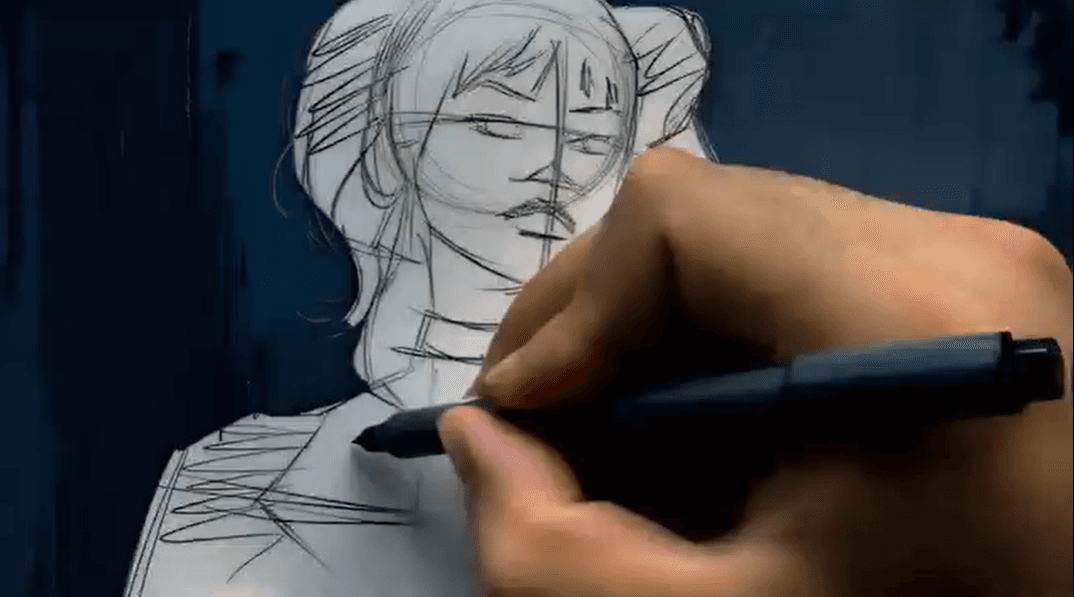
How to render a sketch with Luma
- Upload your sketch — Photograph or scan your sketch and upload it to Luma AI. Pencil on paper, pen on napkin, or a rough digital file all work. Luma AI reads line structure and implied form, not image quality — a clean phone photo of a notebook sketch is sufficient input. Sketches with clear line structure and defined form boundaries render most accurately. Highly gestural or abstract sketches with ambiguous form will produce more interpretive outputs.
- Set the render target — Tell Luma AI what the sketch should become: a product render, an architectural interior, a character illustration, a piece of furniture, a vehicle concept. This is the brief Luma AI uses to determine which material and lighting conventions to apply to the sketch's geometry. If the sketch has specific proportions that matter (a product dimension, an architectural clearance), name them explicitly in the prompt rather than relying on the sketch alone to communicate them.
- Describe the surface, light, and environment — This is where render quality is determined. Vague input produces a generic render. Specific input produces a render that matches a real production context.
- Vague: "Make this look realistic."
- Specific: "Render this as a matte brushed aluminum product on a white studio surface, soft overhead diffused light, no shadows, e-commerce hero shot framing."
4. Iterate on the render direction — Change the lighting from studio to golden hour. Switch the material from concrete to wood. Move the camera angle. Each prompt refines the render without discarding the original sketch structure. Luma AI carries the compositional context forward across iterations — you are directing a render, not starting over.
5. The output -- Luma delivers a downloadable rendered image that holds the composition of the original sketch while replacing line work with materials, light, and surface detail. Proportions, spatial relationships, and framing from the sketch are preserved. What changes is everything that makes a sketch look unfinished — implied surfaces become real ones, ambient light becomes directional, and form becomes volume.
Why Use Luma?
The gap between a sketch and a rendered comp is where most concept work stalls. The sketch exists. The idea is clear. But getting from line drawing to a visual that communicates material, light, and finish to a client or stakeholder requires a production step — and that can add days and budget to every concept direction explored.
Luma AI makes the sketch the production input. A product designer who previously needed a 3D artist to render three material directions can now generate 10 rendered directions from a single sketch in one session — and present all of them to a client before any production resource is committed. The decision moves earlier. The production investment goes to the direction that's already been validated.